
Finding a block of data that looks like a map is only half the job in WinOLS. Until the map has the right size, start address, data format, axes and a factor/offset, the numbers on screen are raw stored values that are hard to judge and easy to change in the wrong place. This guide shows how to define a map in EVC WinOLS: the map properties, dimensions, data organisation, factor and offset, and the axis definition, step by step. Menu names, fields and shortcuts are taken from EVC’s own public WinOLS 5.94 manual, linked at the end.
Checked on 3 November 2026 against the WinOLS 5.94 manual on evc.de and EVC’s product and download pages. EVC lists WinOLS 5.96 (29.10.2026) as the current version and the 5.94 manual as the current manual, so small differences in newer builds are possible. EVC’s own documentation always takes priority over this page (source, source).

Before you start
- Work in a project. WinOLS stores data and maps in project files, and changes are saved as versions next to the original (source). If you have not created one yet, see our guide to importing an original read and creating a WinOLS project.
- Find the candidate first. Maps usually come from the automatic background map search or from a manual search in text or 2d mode. Our guide to finding maps in WinOLS covers both. This page starts where that one ends: you have spotted the data and now want to describe it properly.
- Use a genuine, registered copy of WinOLS from EVC or an authorised reseller.
If you are new to the idea of axes and scaling in general, our explainer on ECU maps, axes, interpolation and factors gives the background without any tool-specific steps.
Step 1: set the view so the data reads like a map
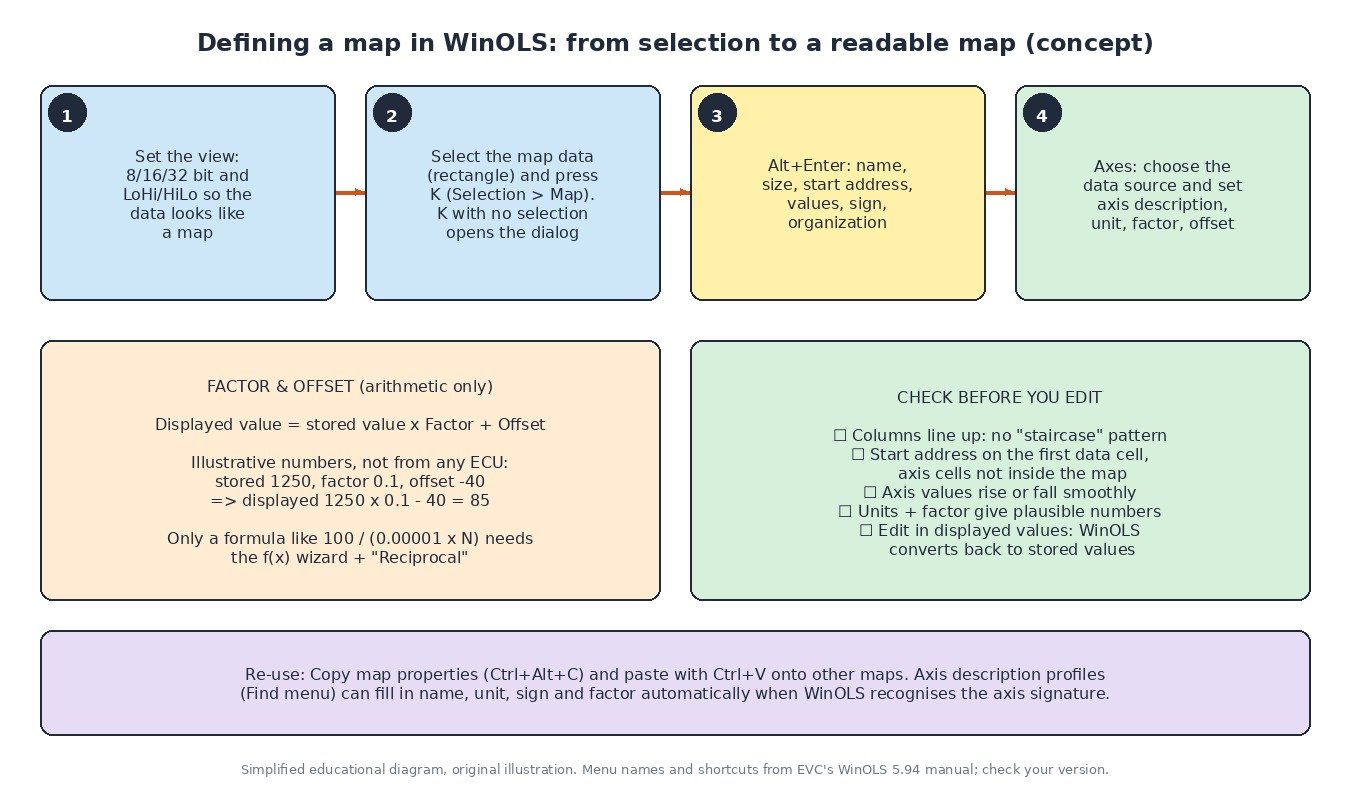
EVC’s manual describes starting a manual search by setting the view parameters: 8, 16 or 32 bit and the byte order HiLo or LoHi. You then adjust the number of columns (hotkeys M and W) until the rows line up, and move the origin left or right with Ctrl + cursor left/right so the map starts at the left of the hexdump. Ctrl+B (“View > Optimize value range”) helps when the bar display shows nothing useful (source).
The byte order is what EVC calls the data organisation: the least significant byte can be stored first, or the most significant byte can be first, also known as Intel or Motorola storage. The command is not available for 8-bit data (source). A wrong byte order is one of the quickest ways to get a map that looks like noise.
Step 2: turn the selection into a map
- Select the map data as a consecutive rectangle in the hexdump. The size of the selection should match the size of the later map (source).
- Press K (“Selection > Selection -> Map”). A new map window opens (source).
- The assistant “View > Support map selection” can optimise a selection for you (columns, start), but EVC warns you should still make sure no data that does not belong to the map is included (source).
You can also create a map by typing its parameters: press K anywhere in the hexdump, with no selection or a 1×1 selection, and WinOLS creates a map at that address and opens “Properties: Window” so you can enter name, size and the rest by hand. If you have just copied map properties, those are applied instead (source). EVC notes that “Insert new Map” in the Edit menu is rarely used, because converting a selection is easier (source).
Step 3: open the map properties (Alt+Enter)
With the map window active, open “Edit > Properties: Window” (Alt+Enter) (source). The first sheet holds the core definition. The fields that matter most, in EVC’s terms (source):
- Name, Description, Unit, Id. The name should describe the whole map; description and unit refer to the map content without the axes. The Id is normally only used by A2L imports. A “>” button lets you store and reuse a tree of map-name templates from a text file.
- Start address: where the map begins.
- Rows & Columns: the map size.
- =>Axis-Addr.: appears only when you have changed the dimensions and the axes sit directly in front of the map, so you can correct the axis addresses in one click.
- Mirror map: displays map and axes in reverse order along the axis.
- Values: bytes per cell and byte organisation (LoHi/HiLo); the dialog also shows the resulting value range.
- Skip bytes: for ECUs where not every byte is used, for example only every second one.
- Sign: shows the values as signed.
- Organization: the type of map: point, 1d, 2d or 2d mirrored.
- Number format, Original values, Difference, Percent: display options (decimal/hex/binary, original instead of current version, absolute or relative difference to the original).
Step 4: set factor and offset so you see physical values
WinOLS uses factor and offset to show physical values. The formula is Displayed value = Value x Factor + Offset (source). As a purely arithmetical example (not taken from any ECU): a stored value of 1250 with factor 0.1 and offset -40 is displayed as 85.
- Formula field: type a formula and WinOLS tries to convert it into factor and offset. The field turns red if the entry cannot be interpreted, or blue if complex formula mode is in use (source).
- f(x) wizard (“Calculate factor and offset”): five variants: two kinds of given formula, a flexible formula with up to four parameters, example values (normally two pairs, three when a reciprocal is involved) and corner values, where WinOLS reads the stored values from the map and you only enter the displayed values. “Swap input/output” handles formulas written backwards (displayed to stored). EVC’s own example, VAL = 100/(0.00001 x N), ends with the “Reciprocal” checkbox switched on (source).
- Reciprocal, Precision, Leading: show 1/x, set digits after the dot and visible digits before it (source).
- Stored presets and the % button: load saved factor/offset/unit/precision sets, or scale so the value at the cursor reads 100% (source).
- Complex formulas: for special cases WinOLS can evaluate formulas in real time using variables such as vx/vy (axis values), x (cell value), ix/iy (indices) and sx/sy (columns/lines). EVC notes factor and offset are used for performance reasons and most formulas can be converted to them (source).
Once factor and offset are set, edit in the values you want to see. EVC’s manual says that when using factor/offset you should always enter the value you later want to see, not the stored eprom value; WinOLS converts it for you (source).
Step 5: define the axes
Each axis needs the same care as the map body. The key setting is the Data source, which defines where the axis data comes from (source):
- Automatic enumeration,
- Values from the eprom, which can also be calculated with additions or subtractions, or indexed with alternating index and value,
- Your own values, stored externally rather than in the eprom.
Give each axis its own description, unit, factor and offset so that, for example, a speed or load axis shows readable steps. In a map window you can click the axis description, or the upper left corner of the map, to change the unit, factor, offset or description of the axis or of the map data quickly (source). For vertical maps, where each data row starts with its Y-axis value, EVC’s recipe is: set rows/columns to the map data only, put the start address on the first data cell, set the line skip bytes to 2 (WORD) or 1 (BYTE) and the Y-axis byte skip to 2 x columns (WORD) or 1 x columns (BYTE). Alternatively select only the map data and press K (source).
Two features save time on later projects:
- Axis description profiles (“Find” menu): collections of axis descriptions (name, unit, sign, factor and so on) that WinOLS builds automatically in the background and can apply to new maps when it recognises the axis signature. EVC notes that only projects with Bosch maps contain such a signature. In manual mode the active profile supplies the entries in the small triangle menu of the map properties dialog (source).
- Copy map properties (Ctrl+Alt+C): copies selected properties of the current map, which you paste with Ctrl+V onto the open map, maps selected in the map selection window, or maps selected in the hexdump (source).
Step 6: check the result before you change anything
- The rows line up with no “staircase”, and no axis cells are inside the map body.
- Axis values rise or fall smoothly; if not, recheck the start address, skip bytes and byte order.
- Units and factor give plausible physical numbers. If two sample points look right but others do not, EVC’s tip is to try the reciprocal option (source).
- Use “Original values”, “Difference” or “Percent” to see exactly what a later change does compared with the original (source).
- Keep the original version untouched and work in a new version. If you plan to reuse a map layout on similar files, our guide to WinOLS map packs and scripts continues from here. Checksums still need attention after edits: see WinOLS checksum correction with plugins.
How to send your file to ecufilemarket.com for tuning
If you would rather have the calibration done for you, send us the original read:
- Read the ECU with your genuine tool and keep the untouched original file safe. Export the original from WinOLS if it lives in a project.
- Open our upload page, attach the original read and add the vehicle, engine, ECU hardware and software numbers, the tool and read method, the stage you want and any hardware already changed.
- Check the credit cost on our pricing page before you submit.
- Most files are returned in less than one hour during support hours. Checksum correction, where needed, is a paid extra.
Good practice: only work on vehicles you own or are authorised to work on, keep the original file for the life of the car, and keep all emission control systems fitted and working. This guide does not cover removing or disabling DPF, EGR, SCR/AdBlue or any other emission equipment.
Sources (checked 3 November 2026)
- EVC WinOLS 5.94 manual (sections 2.3-2.6 manual map search and vertical maps, 5.3.1 Copy map properties, 5.8 Inplace edit, 5.24-5.25.2 Properties: Window, Calculate factor and offset, Number to Text, 8.11 Selection -> Map, 9.7 Axis description profile, 13.12 Data organisation, 13.14-13.15 factor/offset view): evc.de/ftp/winols/WinOLS HelpEn.pdf
- EVC WinOLS product page: evc.de/en/product/ols/software
- EVC WinOLS download page (versions and manual date): evc.de/en/download/down_winols.asp
WinOLS is a registered trademark of EVC electronic GmbH; Bosch and all other brand names belong to their respective owners. ECU File Market is an independent tuning file service and is not affiliated with, endorsed by or sponsored by EVC electronic. Names are used only to describe compatibility and workflow. Use only genuine, licensed software.