
Once you have tuned a few files for the same ECU family, you start doing the same work again and again: finding the same maps, naming them, and making very similar changes. WinOLS has two built-in ways to stop repeating yourself. Map packs carry your map definitions to a new project, and scripts carry your actual changes and check by themselves whether they fit a new file. This guide explains how to use both, step by step, with the menus and shortcuts from EVC’s own WinOLS manual.
Facts checked on 29 October 2026 in EVC’s public WinOLS manual (English PDF, version 5.94) and on the WinOLS product and download pages, linked in the sources at the end. The download page listed WinOLS 5.96 (dated 29.10.2026) as the current release that day. Menu names and shortcuts can change between versions, so check the built-in help of your version too.
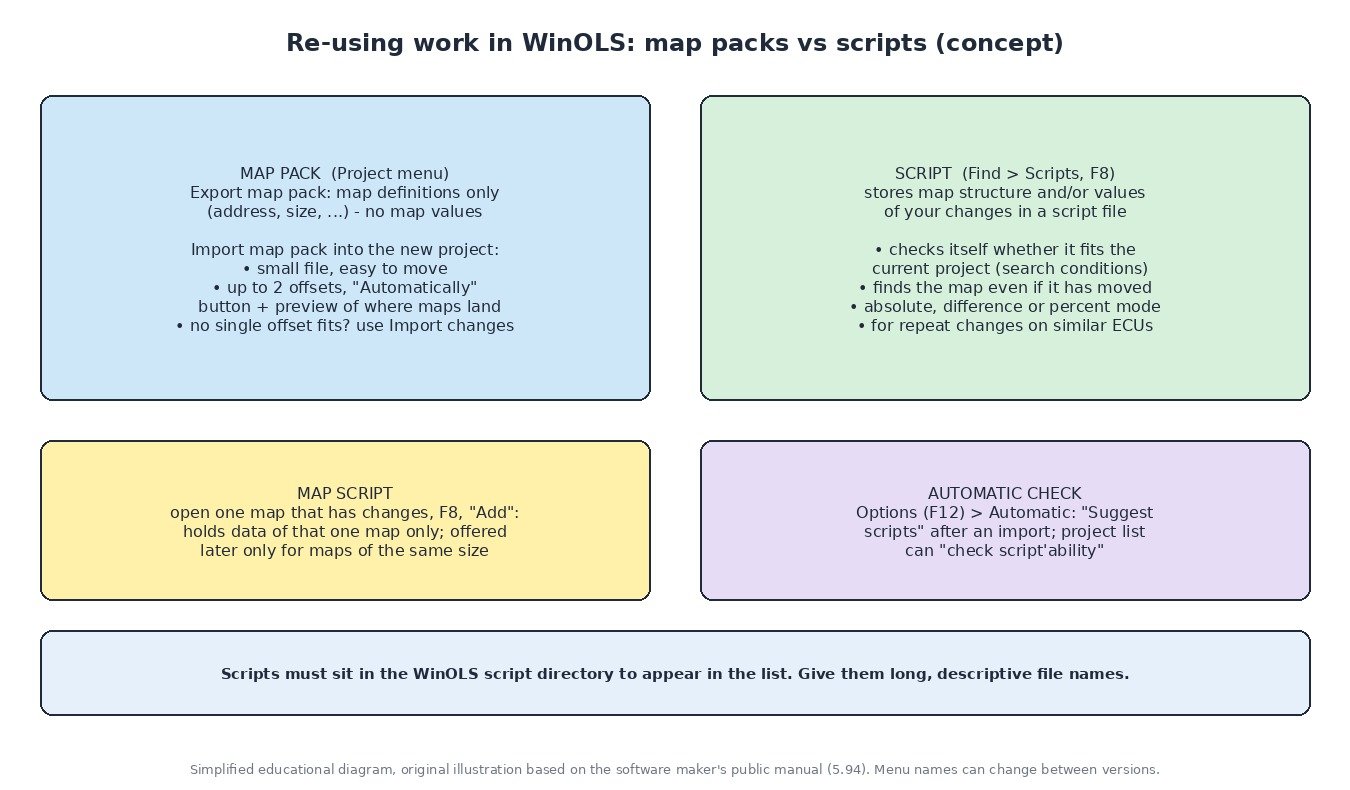
Which tool for which job
The manual’s chapter on importing data from older projects lists several options side by side (source). The three that matter for repeat jobs:
- Import maps (Project menu, Ctrl+Shift+I): copies map definitions from another WinOLS file into the current project, without touching the data. Use it only when you are sure the maps are at the same addresses (source).
- Map packs (Project menu: Export map pack / Import map pack, listed in the shortcut table as Shift+Alt+E and Shift+Alt+I): also transfer map structure only, but through a small separate file, and you can enter an offset when importing (source).
- Scripts (Find menu > Scripts, F8): store the structure and/or the values of your changes in script files that recognise automatically whether they can be applied and where the map to change is located. EVC describes them as a power-user option for when you make the same or similar changes to many files (source, source).
If the old project is open and you only need its changes once, the Import changes assistant (Ctrl+Alt+I) is usually simpler; we covered it in our WinOLS compare files and import changes guide.
Before you start
- A licensed WinOLS installation. EVC lists WinOLS 5 for Windows 10 (x64), Windows 11 (x64) and Windows 11 (ARM), with a free demo on the download page for practising (source, source). Use only genuine, licensed software.
- Projects built on true stock reads. A script is created from the differences between the Original and the version of a project, so the Original must be the unmodified read from the ECU. See our guide to creating a WinOLS project from an original read.
- Checked work. Only turn changes into a script once you have reviewed them. A script repeats mistakes just as quickly as good work.
Step by step: export and import a map pack
- Export from the finished project. In the source project choose Project > Ex- & Import > Export map pack. WinOLS exports all maps, but not the data inside them, into an external file (the menu describes it as a KP file) that you can move like any other file (source).
- Open the new project. Create or open the project for the new read of the same ECU type.
- Import the map pack. Choose Project > Ex- & Import > Import map pack and select the file. The dialog shows sample addresses from the file next to the number of maps, how your offset changes those addresses and how plausible the result is, plus an overview image of the target project where blue markers show where the maps will land (source).
- Find the right offset. Use the “Automatically” button, compare the map addresses with the element addresses in the image, or click in the image to try different offsets. You can enter up to two offsets; EVC’s example for moving a map from 0x7000 to 0x400000 is 0x7000 as offset 2 and 0x400000 as offset 1 (source).
- No offset fits all maps? The manual’s advice is to use Import changes instead (source).
- Check a few maps by eye. Open some of the imported maps and confirm the axes and data look like real maps before you rely on the names.
Step by step: create a script from your changes
- Open the finished project with the Original and the version that holds your checked changes.
- Open Find > Scripts (F8) and click “Add”. The Create scripts dialog is EVC’s recommended way to make scripts; it always starts from the changes in the current project, and you select which changes to export (source).
- Select maps rather than raw data areas. The manual says data areas are less secure because WinOLS has less information about them, so register maps that cover the changed areas where possible. Areas without at least two different byte values in the original are not listed for safety; the “make larger” option can extend them until they can be identified safely. For maps you can also identify them by map id, if that id exists in the target project (source).
- Restrict where the script may be applied. EVC recommends restricting applicability as much as possible: require entire blocks or maps to be recognised, require certain project properties, and set how far addresses may move and how much values may differ (source).
- Choose the preferred mode. A script stores a preferred transfer mode (absolute, difference or percent), which you can override when you run it, depending on the script (source).
- Save it with a long, descriptive name in the WinOLS script directory. The name is what you see in the script list later, and scripts stored elsewhere do not appear in the list. The script directory can be set in the WinOLS options; script files are text files (source).

Step by step: apply a script to a new read
- Import the new stock read as a new project and fill in the project properties.
- Press F8. The Scripts dialog shows which scripts can be applied to the current project; you can execute, edit (opens a text editor) or delete scripts there, and limit the list to a subfolder. With many scripts you can switch off “Check automatically” to speed the dialog up (source).
- Let WinOLS suggest scripts. In the options (F12) on the Automatic page, “Suggest scripts” makes WinOLS show applicable scripts after every import (source).
- Run the right script, choosing the mode if the script allows it.
- Review the result. Check every changed map in the Differences window against the software of this file, then run the checksum plugin before exporting. WinOLS stores changes as versions, so the Original stays untouched and can be restored at any time (source).
Map scripts for a single map
Normal scripts apply to the whole project, so they only work on projects very similar to the source. A map script only knows one map: open a map that has differences between Original and version, press F8 and click “Add”. To apply it, open the target map and run the script function; WinOLS then only lists scripts made for maps of the same size (source).
“The script cannot be applied due to line X”
EVC explains that this message does not mean the script is broken: one of its search sequences was not found in the current file, so it is blocked for safety. The manual lists four options: allow more tolerance (slower, higher risk of false matches), remove a sequence that is not important, use begin_executable tolerate_not_found so missing sequences are skipped, or accept that the script does not fit, because loosening the conditions at all costs can give a bad result (source). For repeat jobs, the last option is often the right one: a different software version needs its own check.
Common mistakes
- Scripts saved outside the script directory do not appear in the list (source).
- Short or vague file names make it easy to run the wrong script on a similar ECU.
- Raw data areas instead of maps are less secure to identify (source).
- Skipping the review after a script or map pack: always compare against the Original and correct the checksum before writing.
- Old WinOLS versions. The 5.94 change log lists a new “Same Offset for All” option for scripts and a fix for wrong line numbers in script error messages, so keep WinOLS updated (source).
Prefer to send the file instead?
If you would rather not build and maintain your own scripts, upload your original read to ECU File Market with the vehicle, engine, ECU hardware and software numbers, the tool and read method, the stage you want and any hardware already changed. Credit prices are shown on our pricing page, and most files are returned in under one hour during support hours. Checksum correction, where needed, is a paid extra.
Good practice: only work on vehicles you own or are authorised to work on, keep the original file for the life of the car, and keep all emission control systems fitted and working. This guide does not cover removing or disabling DPF, EGR, SCR/AdBlue or any other emission equipment.
Sources (checked 29 October 2026)
- EVC electronic, WinOLS manual (English PDF, version 5.94): evc.de/ftp/winols/WinOLS HelpEn.pdf (sections 2.12 Importing data from older projects, 4.12.8 Export map pack, 4.12.9 Import map pack, 4.12.10 Import maps, 9.20 Scripts, 9.20.1 Create scripts, options page Automatic, 14.1 Scripts incl. 14.1.3 Map scripts and 14.1.6 Why can’t my script be applied?)
- EVC electronic, WinOLS software product page: evc.de/en/product/ols/software/
- EVC electronic, WinOLS download page (versions, demo, change log): evc.de/en/download/down_winols.asp
WinOLS is a registered trademark of EVC electronic. Other product and company names are trademarks of their respective owners. ECU File Market is an independent tuning file service and is not affiliated with, endorsed by or sponsored by EVC electronic. Names are used only to describe compatibility and workflow. Use only genuine, licensed tools and software.