
WinOLS can already re-apply known changes with its built-in scripts, but some jobs need more: checking every incoming file the same way, reading project properties, correcting checksums and exporting a result without clicking through menus. For that, EVC sells an optional plugin called “External Control”, which brings the LUA programming language into WinOLS. This guide explains what the WinOLS LUA plugin is, what you need, how to start a script and how a simple, safe script is built. Every fact comes from EVC’s own public LUA manual and product pages, linked at the end.
Facts checked on 2 November 2026 in EVC’s “External Control for WinOLS” manual (as of 27.10.2026) and on evc.de. Function names and options can change with plugin updates, so EVC’s current manual always takes priority over this page. New to WinOLS? Start with our guides to creating a project and to map packs and built-in scripts.

What the External Control (LUA) plugin is
EVC describes External Control as a plugin that lets you control many WinOLS functions through scripts, so that repetitive data processing steps can be automated. To do this, the plugin brings a complete programming language with it: LUA, an existing language that was integrated into WinOLS (source). The manual documents the WinOLS functions that LUA can call; for the language itself EVC refers to the official LUA homepage (source, source).
EVC’s product page gives three application examples: reading and writing individual bytes in a project, applying changes to each incoming file depending on the Bosch number and sending the result by mail, and the fact that the WinOLS online checksum search is itself written in LUA (source). Scripts can be applied on demand to the current project, or run permanently and process incoming files (source).
Not the same as WinOLS scripts. EVC points out that External Control has nothing to do with the script functions already built into WinOLS (*.winolsskript files) and that it is “a lot more powerful” (source). The two can still work together: a LUA script can import a WinOLSScript file into the current project with projectImport (source).
What you need
- A registered WinOLS version. The manual names at least version 1.219 as the minimum (source); in practice you will be on a current WinOLS 5.
- A registered “External Control” plugin. It is not included in the WinOLS licence (source). On EVC’s plugin list it appears as part number OLS530 “LUA for WinOLS” (version 3.006 when we checked, listed at EUR 1178.10 including 19% VAT) (source, source).
- Programming knowledge. EVC is direct about this: OLS530 is a scripting language, not a ready-made solution. EVC supports errors in the plugin itself, but not your programming work (source).
- For server use: your own Windows web server. WinOLS functions can need a lot of computing power, so EVC says a shared or time-limited hosting environment would cause problems (source).
EVC offers the manual and sample programs for download on the LUA product page, and from WinOLS 5.70 / OLS530 3.005 there is a separate LUA debugger (source).
Step by step: starting a LUA script
EVC lists three ways to start a LUA script (source):
- As a start parameter. Pass the complete path and file name of the script when starting WinOLS. This needs WinOLS to be closed: if WinOLS is already running, the start is ignored and the script runs in the open WinOLS if possible.
- Drag and drop into the WinOLS frame window. Drop the .lua file onto the main window.
- Drag and drop into a project window. The target project then becomes the default project (the “context”) for the script.
Understand the context. Many functions work on the current WinOLS state. projectSave, for example, only saves the project that is currently selected. EVC compares LUA for WinOLS to a macro recorder that replays keystrokes. If the needed context does not exist (for example projectSave() with no project open), the function fails and returns an error value (source).
Always use full paths. EVC recommends passing file names with the complete path, because WinOLS cannot guarantee the same working directory every time. Inside LUA strings, backslashes must be doubled, for example "c:\\myfiles\\file.bin" (source).
The building blocks of a first script
These functions from EVC’s manual are enough to understand most simple scripts (source):
- MessageBox shows a window, which is useful for testing. EVC advises avoiding it on a server, because the process pauses until someone closes the window.
- Log writes a line into the WinOLS log file (and the service console, if used): the better choice for unattended runs.
- projectGetProperty reads texts from the project properties, for example the ECU producer, ECU software version, vehicle data or project status. It returns what is stored in the project properties; it does not scan the hexdump. projectSetProperty changes a property and marks the project as changed.
- projectImport imports a file as a version into the current project. With no type given, the file type is detected automatically, including winolsskript files. The option
eOptionWinOLSSkriptTestOnlyonly checks whether a script’s conditions are met, without applying it. - projectGetAt / projectSetAt read and write values in the hexdump, at an address relative to the selected element or by map ID and coordinates.
projectSetAtmarks the project as changed. - projectSearchChecksums, projectApplyChecksums, projectStatChecksums run the checksum search, calculate checksums that are not yet calculated, and report the result. A return value of 0 from
projectStatChecksumsmeans at least one checksum exists and all were calculated correctly; -1 means no checksums (or no project); a number above 0 is the count of checksums that could not be calculated. EVC says any value other than 0 should make the script stop the project from being delivered. - projectSave saves the active project. If the Original has changes, WinOLS creates a version called “CreatedByLua”; passing
TRUEforces a new version, with an optional name and description. - projectExport exports the current project, for example as a binary, Intel Hex or Motorola Hex file (these formats export the currently selected element). Slave formats for other tools need the matching plugin.
- SaveAll, CloseAll, Quit.
Quitcloses WinOLS and unsaved changes are lost. EVC recommendsCloseAll()before quitting in automated use, because open projects are restored at the next start and would pile up in memory. A script passed as a start parameter must end withQuit()if WinOLS should close afterwards.
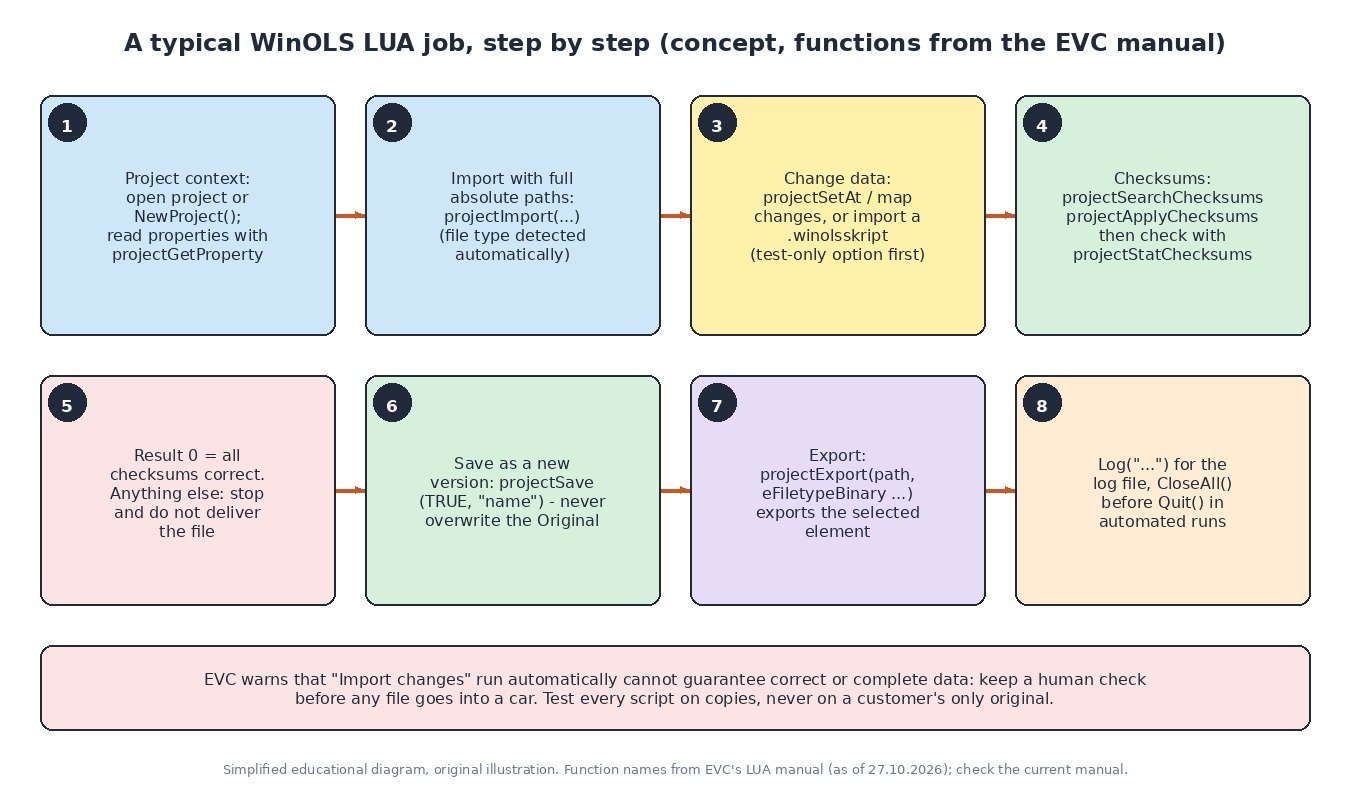
Example: check checksums, save a version and export
The short script below is our own example, written only with functions and syntax documented in EVC’s manual (source). Drop it into a project window that already contains your modified version. It runs the checksum search and calculation, stops if the status is not 0, and otherwise saves a new version and exports a binary next to a folder you choose.
-- Example only: test on a copy of a project first
Log("Checksum check started");
sw = projectGetProperty(ePrjPropEcuSoftwareversion);
projectSearchChecksums();
projectApplyChecksums();
status = projectStatChecksums();
if (status == 0) then
  projectSave(TRUE, "Checked by LUA", "Software "..sw);
  projectExport("C:\\ols_out\\[ImportFilename|file]_checked.bin", eFiletypeBinary);
  Log("Checksums OK, file exported");
else
  MessageBox("Checksum status "..status.." - file NOT exported", MB_ICONWARNING);
end
Notes on the example: [ImportFilename|file] is a placeholder documented by EVC that uses the import file name, with “file” as the fallback when it is not available (source). Checksum correction in WinOLS needs the right registered checksum module for the ECU; our guide to checksum correction with plugins (F2) explains this.
Running scripts on a server: EVC’s recommendations
- Server mode. Instead of being applied once to the current project, the script runs permanently from program start and reacts to “ticket” files sent from outside, for example by a web server (source).
- WinOLS configuration. For performance, EVC recommends disabling the background search for potential maps, the background generation of overview information and “Suggest scripts, if applicable” when importing. It recommends keeping “Search and accept vehicle data” and “Search checksums” when importing enabled, or scripts may have problems (source).
- Automatic import of changes needs a human check. For
projectImportChanges, EVC states that the correctness and completeness of the imported data cannot be guaranteed and that using it in an automatic process without human control is risky (source).
Safety rules before you automate anything
- Trusted scripts only. LUA includes file-management functions, including deleting files. EVC warns not to run scripts that do not come from a trusted source, and on a server to make sure only authorised people can add or change scripts (source).
- Never work on the only copy. Keep the untouched original read archived outside WinOLS, and let scripts write new versions instead of changing the Original.
- Test on copies. Try every new script on duplicated projects until the result is exactly what you expect.
- Keep a person in the loop. A script can prepare a file quickly, but someone should review the changes and the checksum status before any file is written to a car.
Common problems
- The script does nothing when started from the command line. WinOLS was already running, so the start was ignored or handed to the open WinOLS (source).
- A function returns an error value. Check that the needed context exists, for example that a project is open and selected (source).
- A file is not found. Use a complete absolute path and doubled backslashes (source).
- The server job stops and waits. A
MessageBoxpauses the process until it is closed; useLoginstead (source). - projectStatChecksums is not 0. Do not deliver the file. Check the checksum module and the project in WinOLS by hand (source).
How to send your file to ecufilemarket.com for tuning
Not every workshop wants to write and maintain its own scripts. If you would rather have the tuning file prepared for you, upload your original read to ECU File Market:
- Export the untouched original from WinOLS (or send the file exactly as your reading tool saved it).
- Open the upload page, attach the file and add the vehicle, engine, ECU hardware and software numbers, the tool and read method you used and the stage you want.
- Check the credit cost on our pricing page before you submit.
- Most files are returned in under one hour during support hours. Checksum correction, where needed, is a paid extra.
Good practice: only work on vehicles you own or are authorised to work on, keep the original file for the life of the car, and keep all emission control systems fitted and working. This guide does not cover removing or disabling DPF, EGR, SCR/AdBlue or any other emission equipment.
Sources (checked 2 November 2026)
- EVC manual “External Control for WinOLS” (LUA, as of 27.10.2026): evc.de/ftp/winols/LuaManualEn.pdf
- EVC product page “LUA for WinOLS” (OLS530, samples, debugger): evc.de/en/product/ols/lua.asp
- EVC WinOLS plugin list (OLS530 version and price): evc.de/en/product/ols/plugins.asp
- LUA homepage (language reference, as recommended by EVC): lua.org
WinOLS is a registered trademark of EVC electronic GmbH; LUA and all other names belong to their respective owners. ECU File Market is an independent tuning file service and is not affiliated with, endorsed by or sponsored by EVC. Names are used only to describe compatibility and workflow. Use only genuine, licensed software and plugins.