
Every AutoTuner tool is sold either as a Master or as a Slave, and that choice decides what happens to every file the tool reads. Slave files are encrypted and travel to a linked Master, who decrypts them, edits them and encrypts the result back for that one customer. This guide explains the AutoTuner Master/Slave file flow step by step: Manage Slave Files in the software, Master operations in AT Cloud, slave file validity, the Master API and the EVC WinOLS plugin OLS1016. All facts come from AutoTuner’s and EVC’s own public pages, linked at the end.
Checked on 3 November 2026 on autotuner.com, help.autotuner.com and evc.de. Prices, fees and features are set by AutoTuner and EVC and can change, so their current pages always take priority over this one.
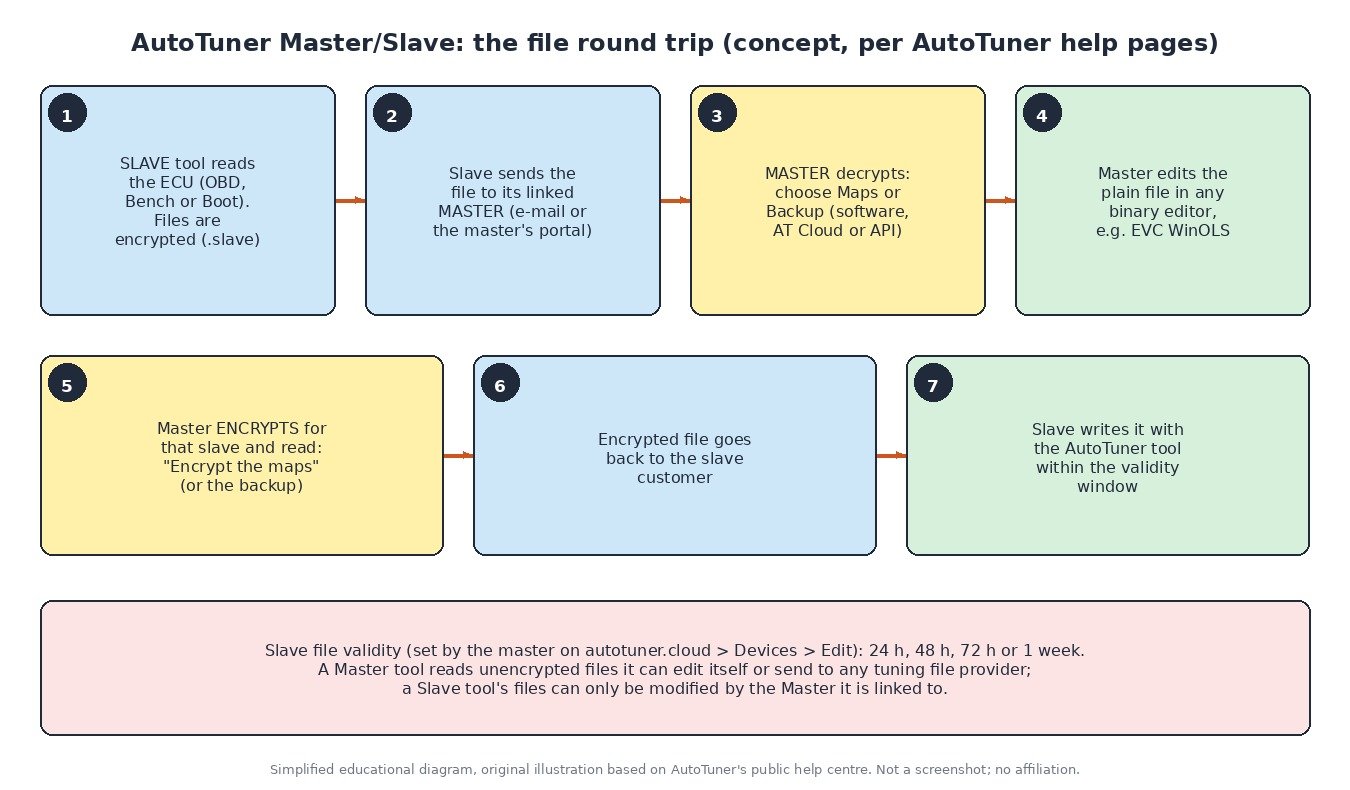
Master tool or Slave tool: the difference
- Master tool: you get unencrypted files, so you can modify them yourself or send them to any tuning file provider. Any editing software that supports binary files can be used; editing software is not included, and AutoTuner says most of its customers use EVC WinOLS (source, source).
- Slave tool: you read and write encrypted files that can only be modified by one specific Master. That Master is a file provider designated when you buy the tool, and the Slave is linked to it (source, source). When ordering a Slave, AutoTuner’s shop lets you mention the Master tool ID it should be linked to at checkout (source).
AutoTuner’s product page also answers the two most common follow-up questions. A Slave can be upgraded to Master for an extra EUR 2000, and it can be transferred to another Master for an extra EUR 350; in both cases the approval of the current Master is mandatory (source). The help centre adds that for a switch to Master the Slave has to be released from its Master and the price difference paid (source).
Step 1 (Slave side): read the ECU and send the file to your Master
The Slave customer reads the ECU as usual, by OBD, Bench or Boot (see our guides to the AutoTuner OBD read and write and the AutoTuner bench read). The resulting file is encrypted. AutoTuner’s advice to Slave users is simple: send the file to your Master. Some providers use e-mail for this, others run a tuning file platform where you upload the file and fill in a form, so ask your Master how they want it (source).
Step 2 (Master side): decrypt the Slave file
AutoTuner names three ways for a Master to decrypt and encrypt Slave files (source, source), and EVC offers a fourth route inside WinOLS (see below).
Option A: “Manage Slave Files” in the AutoTuner software (Master tool on USB)
- Connect the AutoTuner Master tool to a USB port of your computer and launch the AutoTuner software (source).
- Click “Manage Slave Files”. The software monitors the “AutoTuner Slave files” folder, which sits inside “My documents”, and lists all files available there (source).
- Choose the operation: decrypt or encrypt (source).
- Shortcut: drag and drop a Slave file into the AutoTuner window and it is decrypted instantly (source).
AutoTuner’s product page describes the same function as “Master operations” in the software, giving access to the slave files folder on your computer (source).
Option B: “Master operations” in AT Cloud (no USB connection)
With the online AutoTuner administration you can work without connecting the Master tool to your laptop (source). In AT Cloud, under Master operations (source):
- Decrypt: drop the file into the designated area and click “Proceed”. The page accepts a .slave or .bak file and notes that the matching master tool ID is extracted automatically from the uploaded file.
- Select which part of the file you want: Maps or Backup, then click “Decrypt”.
Option C: the AutoTuner Master API (optional)
AutoTuner also offers an API that decrypts and encrypts Slave files online without the Master tool physically connected. It has to be implemented on your own server by a web developer; AutoTuner asks you to contact them for details (source). AutoTuner announced that with the first version of AT Cloud the only paid option would be this decryption API, at EUR 199 per month as a flat fee for an unlimited number of Slaves, effective from 1 April 2025 (source).

Step 3: edit the decrypted file
The decrypted file is a normal binary that you can open in any editor that handles binary files (source). In WinOLS that means importing it into a project and keeping the decrypted read as the original; our guides to creating a WinOLS project and WinOLS checksum correction cover the next steps. Keep a note of which Slave tool and which read the file belongs to: you need that link again when you encrypt.
Step 4: encrypt the result for that Slave and send it back
In AT Cloud Master operations, encryption works per Slave and per read (source):
- Choose Encrypt, then select the right Slave / car in your list (the list shows the read with method, dates, vehicle and ECU).
- Select the action you want: Backup or Maps.
- Drop the modified file into the designated area and click “Encrypt the maps”.
- Send the encrypted file to your customer.
With the Master tool on USB, the same encrypt operation is available in “Manage Slave Files” in the software (source). The Slave customer then writes the file with their AutoTuner tool like any other tuned file. Always re-read and keep the original before writing; our AutoTuner backup file guide explains why.
Slave file validity: 24 hours to one week
Encrypted Slave files have a limited validity: 24 hours, 48 hours, 72 hours or one week (source). The Master changes this in AT Cloud at autotuner.cloud/devices: open Devices, click Edit on the Master tool, choose the “Slave files validity time” and click Save (source). In practice, agree the timing with the Slave customer so the file is written before it expires; if it does expire, ask the Master for a fresh one.
Option D: Slave files directly in EVC WinOLS (plugin OLS1016)
Masters who work in WinOLS can import and export Slave files with the EVC plugin OLS1016 “Autotuner Slave Files Import/Export”. AutoTuner says encryption and decryption are then done automatically through its API, and that you need your Master tool ID and your Master API key, plus EVC WinOLS 5 (source). EVC’s own page adds (source, source):
- It was developed in cooperation with AutoTuner and handles .slave files.
- Export is only possible for projects that were imported with this plugin.
- A valid AutoTuner Master API key is required; it is entered in WinOLS under F12 > Third party. EVC recommends requesting the key from AutoTuner before buying the plugin.
- The service needs additional fees paid to AutoTuner (per month and/or per file) that are not included in the plugin price.
Common problems
- “I have a Slave tool but want another provider.” Files can only be modified by the linked Master. Moving to another Master costs EUR 350 and needs the current Master’s approval (source).
- The encrypted file no longer works. Check whether the validity window (24 h to one week) has passed (source).
- Which Master tool does AT Cloud use when decrypting? The master tool ID is extracted automatically from the uploaded file, so upload the unchanged .slave or .bak file the customer sent (source).
- Plugin export fails in WinOLS. OLS1016 only exports projects that were imported with the plugin, and it needs the Master API key under F12 > Third party (source).
How to send your file to ecufilemarket.com for tuning
If you read with an AutoTuner Master tool, your files are unencrypted and you can send them to any tuning file provider (source), including us:
- Read the ECU and keep the original and backup files safe.
- Open our upload page, attach the original read and add the vehicle, engine, ECU hardware and software numbers, the read method (OBD, Bench or Boot), the stage you want and any hardware already changed.
- Check the credit cost on our pricing page before you submit.
- Most files are returned in less than one hour during support hours. Checksum correction, where needed, is a paid extra.
If you use a Slave tool, its encrypted files can only be modified by the Master it is linked to (source), so contact your Master first. Please do not upload encrypted Slave files that are linked to another provider.
Good practice: only work on vehicles you own or are authorised to work on, keep the original file for the life of the car, and keep all emission control systems fitted and working. This guide does not cover removing or disabling DPF, EGR, SCR/AdBlue or any other emission equipment.
Sources (checked 3 November 2026)
- AutoTuner help: How to decrypt Slave files and backup: help.autotuner.com/en/articles/2984977-how-to-decrypt-slave-files-and-backup
- AutoTuner help: AT Cloud master operations: help.autotuner.com/en/articles/10868437-at-cloud-master-operations
- AutoTuner help: Slave files validity: help.autotuner.com/en/articles/11927984-slave-files-validity
- AutoTuner help: EVC WinOLS plugin for Slave files management: help.autotuner.com/en/articles/5688755-evc-winols-plugin-for-slave-files-management
- AutoTuner help: What’s the difference between Master tool and Slave tool: help.autotuner.com/en/articles/2984985-what-s-the-difference-between-master-tool-and-slave-tool
- AutoTuner help: New API from 01/04/2025: help.autotuner.com/en/articles/10682405-new-api-from-01-04-2025
- AutoTuner shop: AutoTuner Tool (Master/Slave, FAQ): autotuner.com/products/autotuner-tool
- EVC: Autotuner Slave Files Import/Export plugin (OLS1016): evc.de/en/product/ols/importer_autotuner_slave.asp ; EVC plugin list: evc.de/en/product/ols/plugins.asp
AutoTuner is a trademark of its owner; WinOLS is a registered trademark of EVC electronic GmbH; all other brand names belong to their respective owners. ECU File Market is an independent tuning file service and is not affiliated with, endorsed by or sponsored by AutoTuner or EVC. Names are used only to describe compatibility and workflow. Use only genuine, licensed tools and software.